Building DAGs
Adding nodes
Click + Add Task or + Add Service in the topbar. Each click places a new node on the canvas at an auto-calculated position. Nodes snap to a 20px grid.
Node configuration
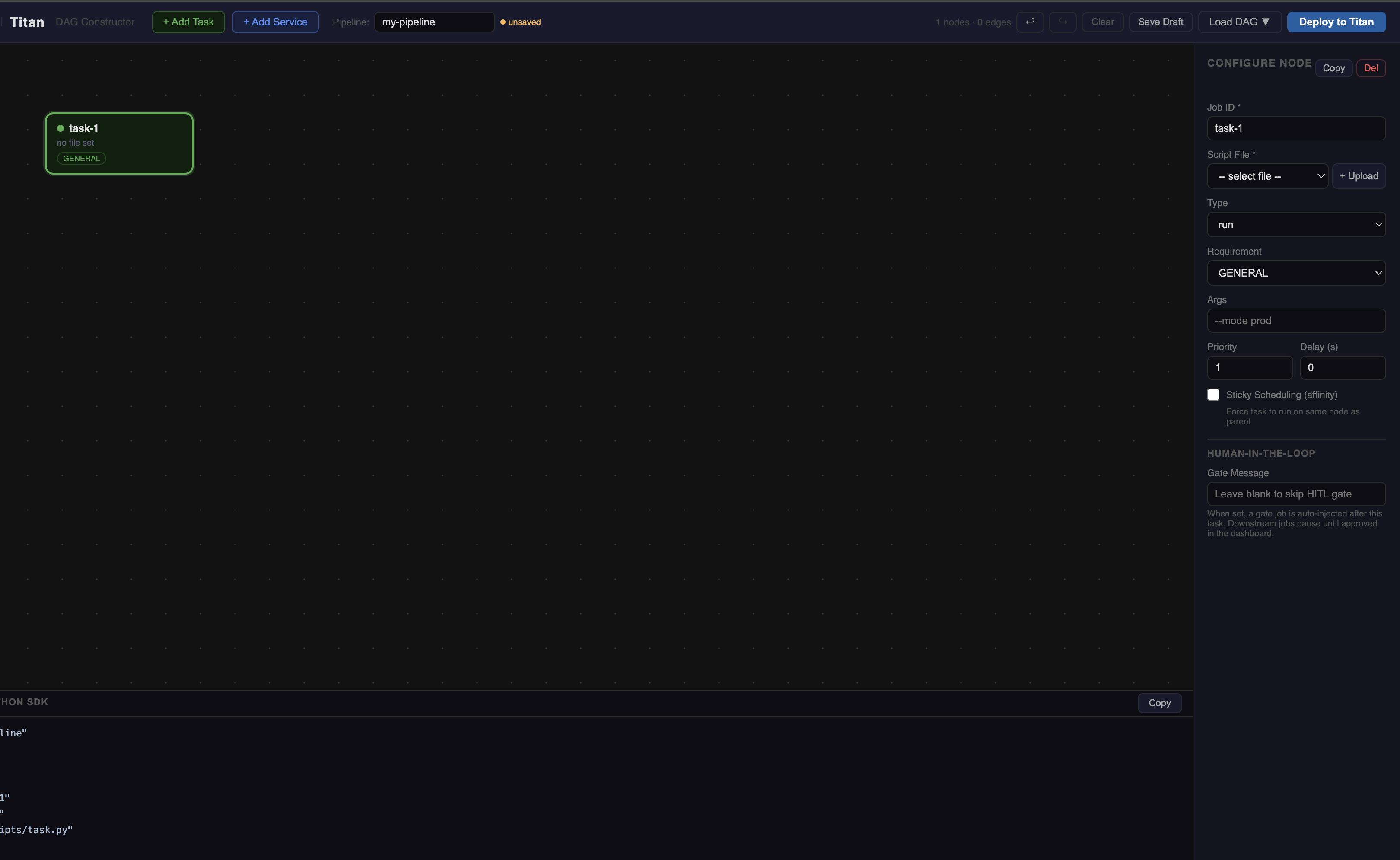
Select a node to open the sidebar. Every field maps directly to a TitanJob property.
Job ID *
Unique identifier for this job within the DAG. Used in dependency wiring, logs, and the visualizer.
- Must be unique across all nodes in the canvas
- Alphanumeric, hyphens and underscores allowed
- Example:
preprocess,train-gpu,comp-synthesizer
Script File *
The Python script that runs on the worker. Select from the dropdown (lists all files in perm_files/) or click + Upload to add a new script without leaving the constructor.
Uploaded scripts are saved to perm_files/ and immediately available in the dropdown.
Type
| Value | Behaviour |
|---|---|
run |
Script runs once and exits. Job completes when process exits 0. |
service |
Process stays alive. Master tracks it as a long-running service. |
Requirement
Routes the job to a worker with matching capability. See capability routing.
Args
Command-line arguments passed to the script at launch.
For positional args, order matters and must match the script's sys.argv expectations.
Priority
Integer 1–10. Higher priority jobs are dispatched first when multiple jobs are queued on the same worker. Default: 1.
Delay (seconds)
Wait this many seconds after all dependencies clear before dispatching. Useful for rate limiting or allowing a service to fully start before dependent jobs connect to it. Default: 0.
Sticky Scheduling (affinity)
When enabled, forces this job to run on the same worker that ran its parent job. Useful when jobs share local disk state.
Warning
Do not combine affinity: true with a requirement that differs from the parent job's worker capability. The scheduler needs a worker that satisfies both constraints — if none exists, the job waits indefinitely.
Port (Service type only)
The port the service process listens on. Recorded by the master for service discovery.
Drawing edges (dependencies)
An edge from node A to node B means: B will not start until A has completed successfully.
To draw an edge:
- Hover over the source node — a port (●) appears on its right edge
- Click and drag from the port
- Release over the target node
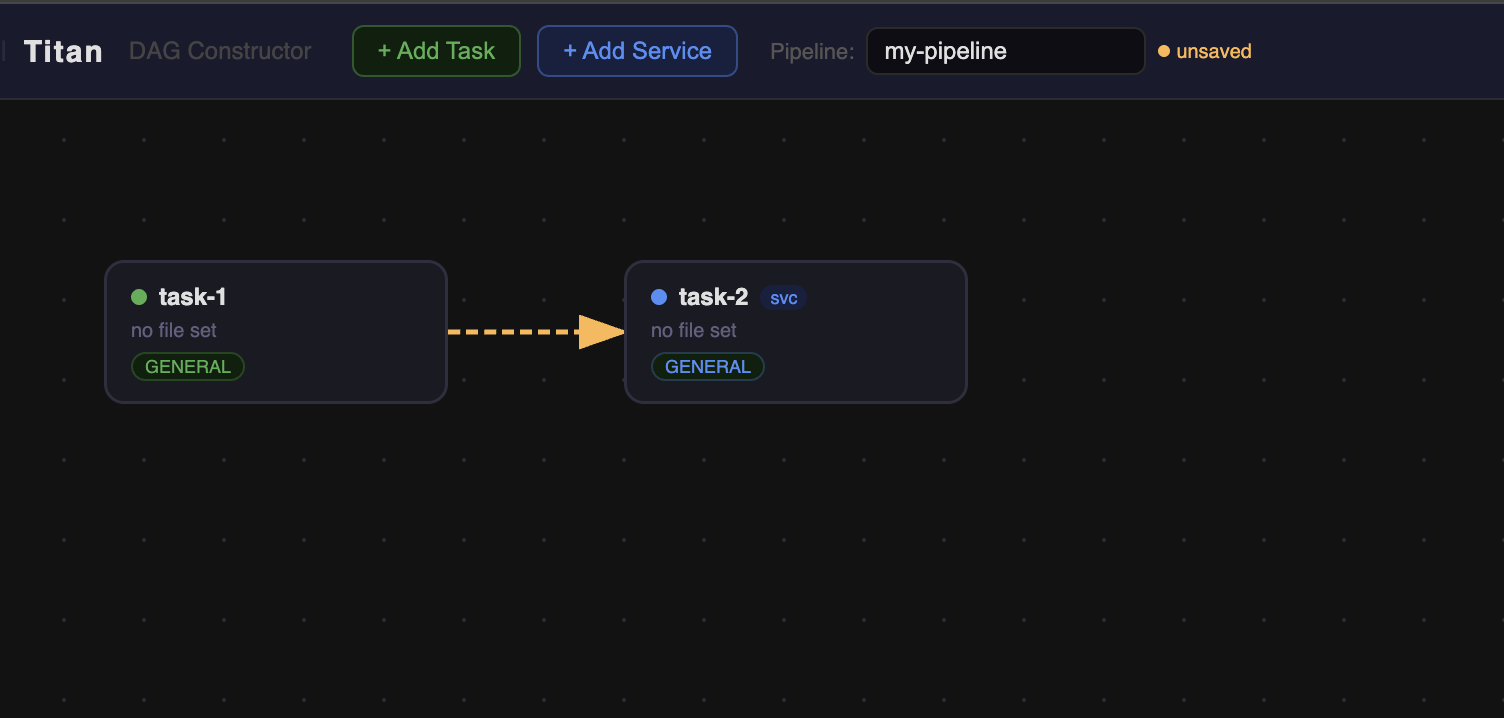
- A blue curved arrow confirms the dependency
To delete an edge: click it (it turns orange/dashed) then press Delete or use the sidebar Delete Edge button.
Multi-select
Drag on empty canvas to draw a blue selection rectangle. All nodes within the box are selected.
- Shift+click a node to add or remove it from the current selection
- Drag any selected node to move the whole group
Delete/Backspaceremoves all selected nodes and their edges at once
When multiple nodes are selected the sidebar shows a multi-select panel instead of node config. Click a single node to edit it individually.
Duplicate a node
Select a node and press Ctrl+D (or click Copy in the sidebar header). The duplicate appears offset by 40px with -copy appended to the Job ID. All field values are cloned.
Undo / Redo
| Action | Shortcut |
|---|---|
| Undo | Ctrl+Z |
| Redo | Ctrl+Y or Ctrl+Shift+Z |
Undo/Redo tracks structural changes: add node, delete node, add edge, delete edge, duplicate. Drag position changes are not tracked.
The ↩ ↪ buttons in the topbar are disabled (greyed) when there is nothing to undo or redo.
Cycle detection
Before deploying, the constructor runs a DFS cycle check on the edge graph. If a cycle is detected (e.g. A → B → A), deploy is blocked with a "Cycle detected — check your dependencies." error.
Titan's execution model does not support cycles in a DAG. Loops and conditional re-runs are expressed at the orchestrator layer, not inside the DAG structure. See Architecture for the agentic loop pattern.
Node badges
Nodes display small badges for at-a-glance status:
| Badge | Meaning |
|---|---|
HITL (yellow) |
A human approval gate is configured after this job |
svc (blue) |
Service type node |
sticky (orange) |
Affinity enabled |
p:N (blue) |
Priority above 1 |
The node border colour reflects its capability requirement (green = GENERAL, purple = GPU, blue = HIGH_MEM).
Live codegen
The Output panel at the bottom of the canvas shows YAML and Python SDK equivalents of the current canvas, updated live.
from titan_sdk import TitanClient, TitanJob

client = TitanClient()

preprocess = TitanJob(
    job_id="preprocess",
    filename="preprocess.py",
    args="dataset-001",
)

train = TitanJob(
    job_id="train",
    filename="train.py",
    requirement="GPU",
    priority=4,
    parents=["preprocess"],
)

client.submit_dag("ml-pipeline", [preprocess, train])
Click Copy to copy the current tab's content to clipboard.