Managing DAGs
Saving drafts
The constructor saves your canvas automatically so work is never lost, and also gives you an explicit save button for on-demand saves.
Autosave
Two seconds after any change to the canvas (nodes, edges, or pipeline name), the state is saved automatically to the server. A status indicator in the topbar shows the current state:
| Indicator | Meaning |
|---|---|
saving… |
Autosave in progress |
✓ draft saved |
Successfully saved |
● unsaved (yellow dot) |
Canvas has changes not yet deployed to master |
Autosave writes to .dag_constructor_states.json on the server. The draft persists across browser refreshes and tab closes.
Save Draft button
Click Save Draft in the topbar to save immediately without waiting for the autosave debounce. Useful just before closing the browser or sharing the URL with someone who will load it.
Note
Save Draft and Deploy are different operations. Saving a draft preserves the canvas for later editing. Deploying submits the DAG to the Titan master for execution. You can save a draft many times without deploying.
The dirty state indicator
A yellow ● unsaved dot appears next to the pipeline name whenever the current canvas differs from the last deployed version. It disappears after a successful deploy.
This tracks "deployed to master" state, not "saved to disk" — so a saved draft still shows the dot if it hasn't been deployed yet. That is intentional: the two states mean different things.
Loading a saved DAG for editing
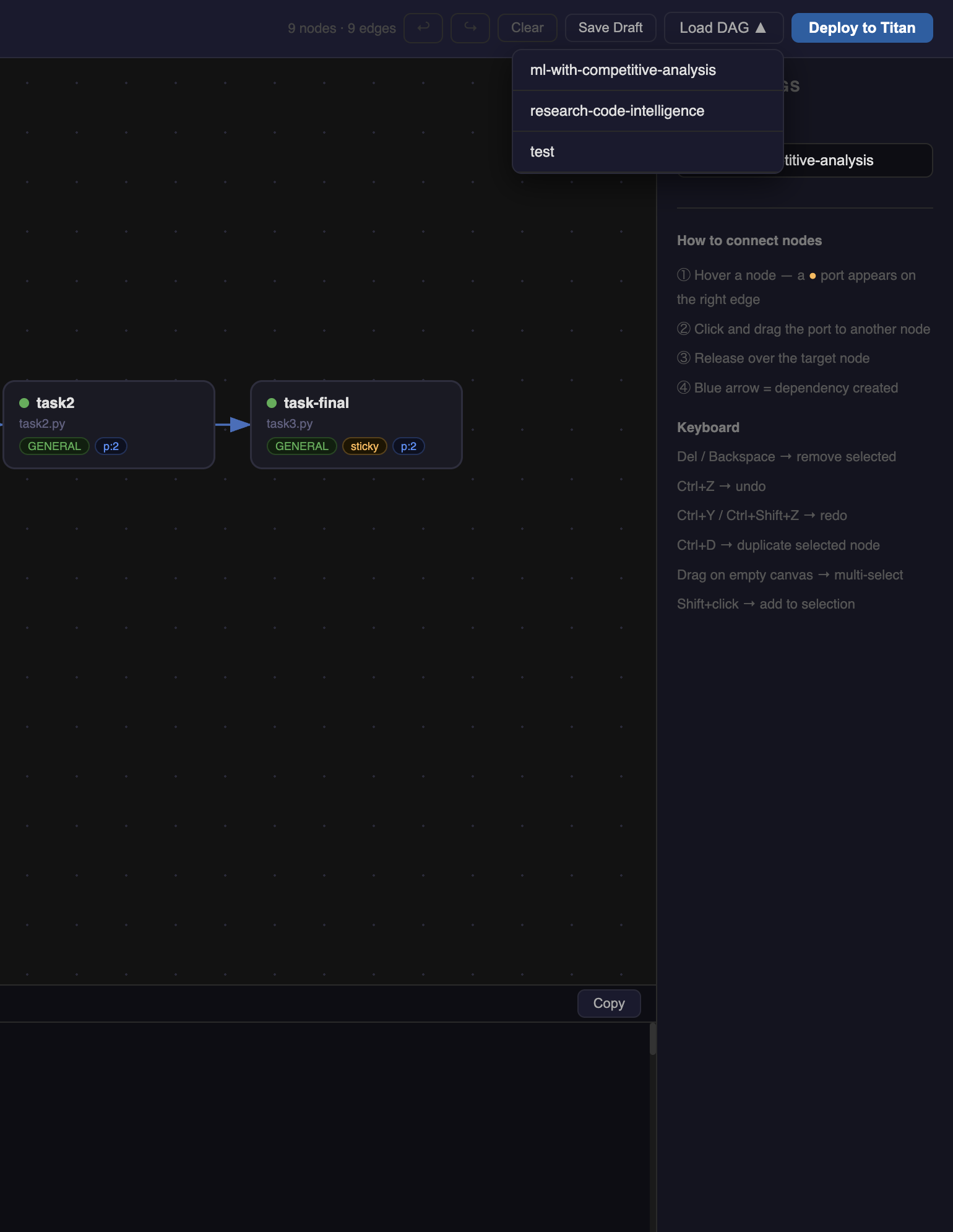
Click Load DAG in the topbar to open a dropdown of all previously saved canvases. Click a name to restore it:
- All node positions, field values, and edges are restored exactly
- The pipeline name is set to the loaded DAG's name
- The canvas is marked clean (no dirty dot) since the loaded state matches the last saved version
If the canvas currently has nodes, a confirmation dialog asks before clearing it.
Common edit workflow
- Open the constructor → click Load DAG → select your pipeline
- Make changes (add nodes, adjust args, change timeout)
- The yellow
● unsaveddot appears as soon as you change anything - Click Deploy to Titan when ready — a new run is submitted with the updated config
Redeploying
Deploying a pipeline name that was previously deployed shows a confirmation:
"my-pipeline" has been deployed before. This submits a new run — it does not update or replace the existing one. Proceed?
This is intentional. Each deploy creates a new run of the DAG. Previous runs are not affected. The confirmation prevents accidental double-deploys when you meant to just save a draft.
Clearing the canvas
Click Clear in the topbar to remove all nodes and edges. This does not delete any saved draft — the last saved version is still available via Load DAG.
Pipeline naming
The pipeline name (editable in both the topbar input and the sidebar DAG Settings panel) becomes the DAG name prefix in the visualizer: a pipeline named ml-pipeline creates a DAG visible at /dags/DAG-ml-pipeline.
Use descriptive names. Once a DAG is deployed under a name, that name appears in logs, the visualizer URL, and the workspace file filter.
After deploy
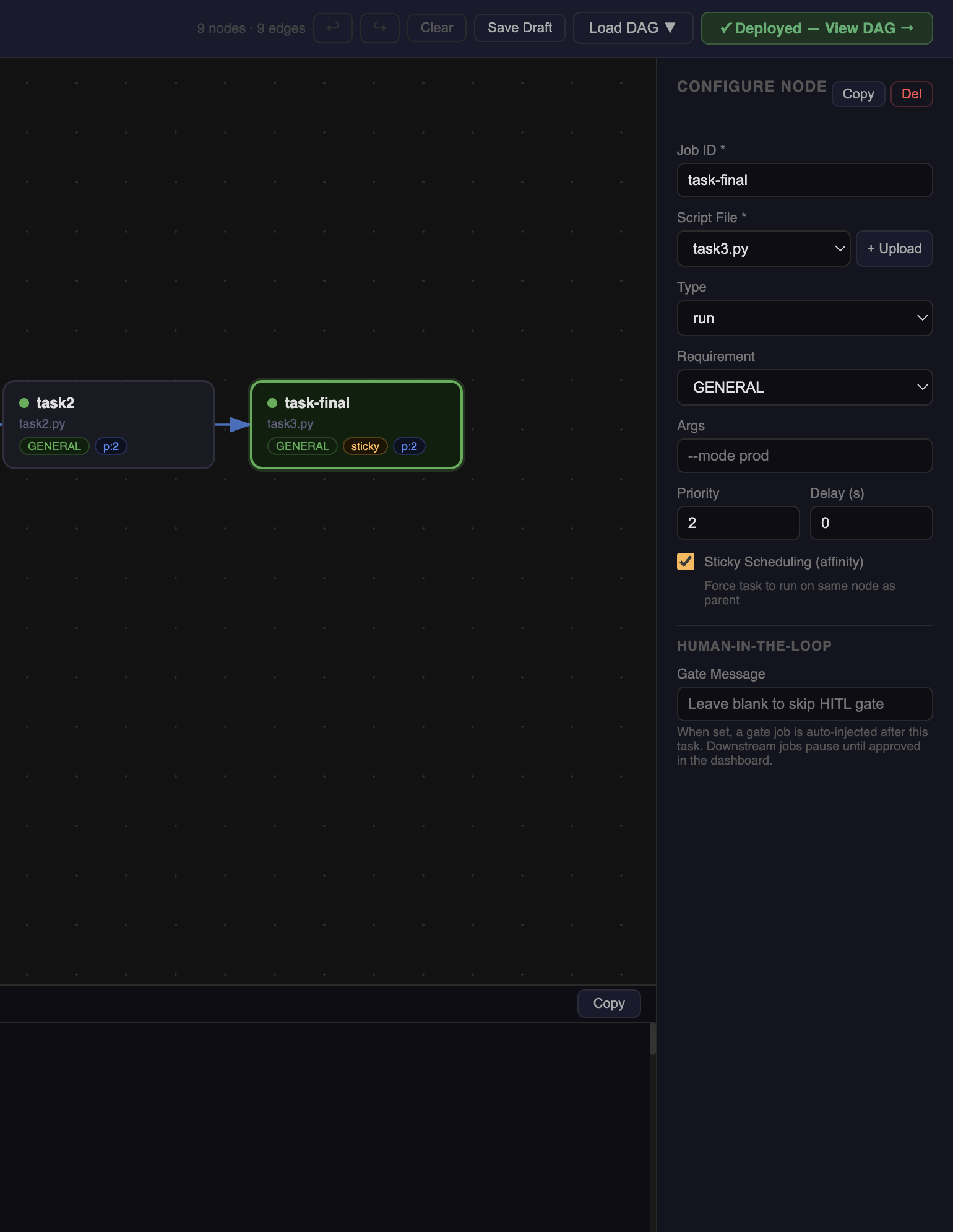
After a successful deploy the Deploy to Titan button is replaced by a green "✓ Deployed — View DAG →" link. Click it to open the DAG Visualizer for the running pipeline in a new tab.