HITL Approval
When a pipeline contains a HITL gate, the DAG Visualizer becomes the approval interface. The gate pauses execution and waits for a human decision before downstream jobs proceed.
The approval banner
When a gate is waiting, a banner appears at the bottom of the visualizer:
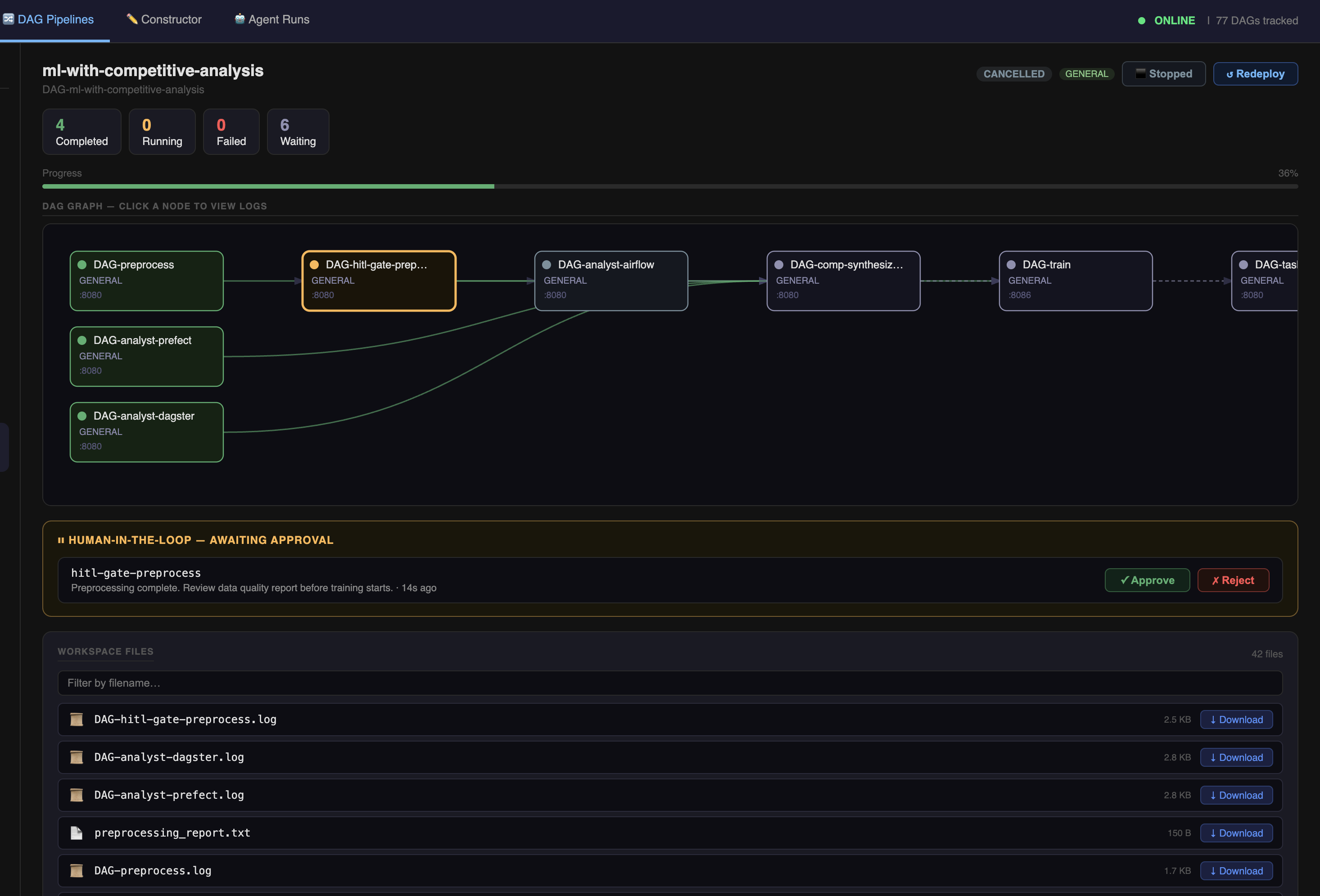
The banner shows:
- The gate message configured on the source node in the constructor
- An Approve button (green)
- A Reject button (red)
- The gate job ID for reference
The banner is polled every 2 seconds — it appears automatically when a gate becomes active, without requiring a page refresh.
Making a decision
Approve
Click Approve to allow the pipeline to continue. The gate job completes successfully and all downstream jobs are released to run.
Reject
Click Reject to stop the pipeline at this gate. The gate job fails and downstream dependents are cancelled.
Reviewing output before deciding
Use the Workspace Files panel to download and review job outputs before making a decision.
A typical pre-training review workflow:
preprocesscompletes —preprocessing_report.txtappears in the files panel- The HITL banner appears: "Review data quality report before training begins"
- Click
preprocessing_report.txtto download and review it - If data quality is acceptable → Approve → training proceeds
- If data looks wrong → Reject → training is cancelled, investigate preprocess
Gate timeout
If no decision is made within the configured timeout period, the gate automatically fails. Downstream jobs are cancelled.
The timeout is set per-gate in the constructor's Gate Timeout field. Default is 48 hours.
Gate job in the graph
The gate node is visible in the pipeline graph like any other job:
| Gate status | Meaning |
|---|---|
RUNNING (blue) |
Waiting for human approval |
COMPLETED (green) |
Approved — downstream jobs released |
FAILED (red) |
Rejected or timed out |
Click the gate node to open its log stream, which shows registration confirmation and wait status.
Multiple gates in one pipeline
A pipeline can have multiple HITL gates — one per source node that has a gate configured. Each gate has its own banner entry and must be approved or rejected independently. The banner shows them one at a time as they become active.